Every month
Comments and messages
Approve the replies we draft for comments on your posts, send your booking link by keyword, and answer messages.
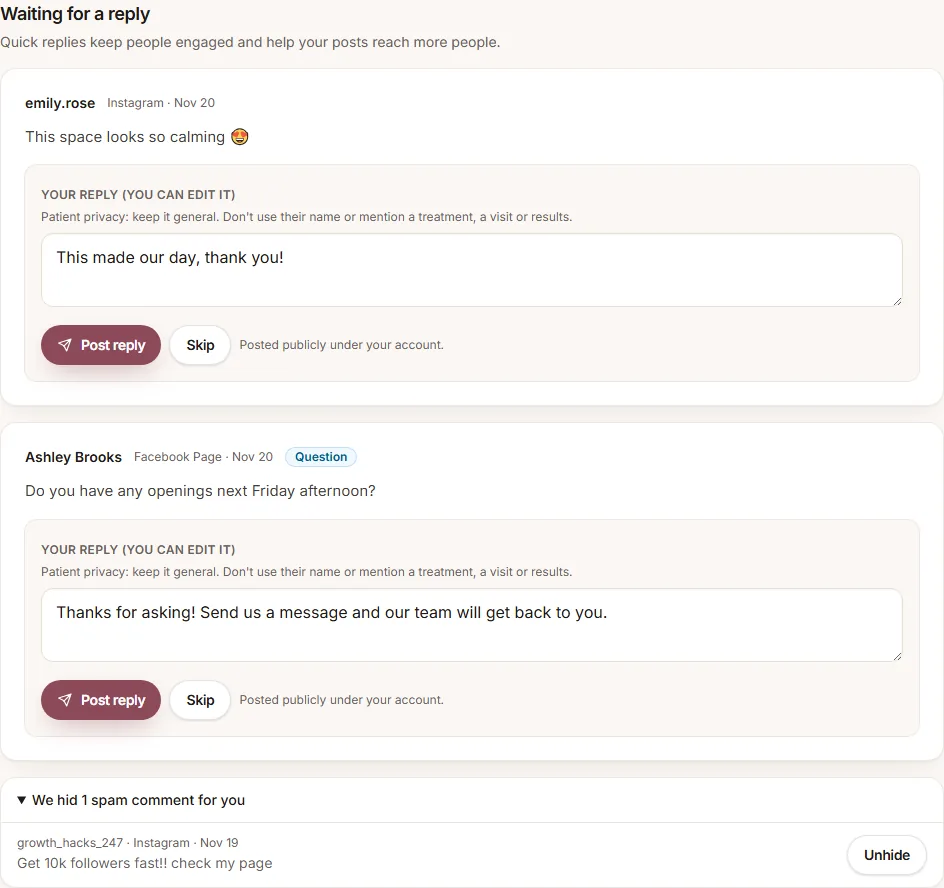
Everything is under Inbox in the menu, in three tabs: Comments, Messages and Auto-replies. When someone comments on a post we published for you, we draft a reply and it shows up under Comments. Nothing is posted until you click Post reply.
Approve a reply
- Read the comment and our draft. Edit the reply if you like.
- Click Post reply to post it publicly under your account, or Skip if you'd rather not reply.
Comments with a link that are clearly spam (like selling followers) are hidden for you automatically. Open We hid … spam comments for you and click Unhide if we got one wrong. The same rules as review replies apply: no links, email addresses or phone numbers, and med spas never mention a treatment, a visit or results. Comments you replied to or skipped stay under Recently handled for 30 days.
Optional extras
Go to Inbox → Auto-replies, choose what you want and click Save:
- Reply to compliments automatically: we post a short thank-you right away. Questions and anything else still wait for you.
- Send your booking link when people comment a keyword: pick a word like BOOK. On Instagram and Facebook, anyone who comments it gets your booking link by DM; on TikTok and YouTube we reply that the link is in your bio. Your offer posts will invite people to comment it. You need a booking link saved under Settings → Social accounts first.
- Greet new messages instantly: the first time someone messages you on Instagram or Facebook, they get a friendly hello with your booking link. You still reply personally.
Your own reply rules
Answer the questions you get every day, like prices, hours or gift cards, with your own words. Under Your reply rules, click Add rule:
- Give it a Rule name and up to 5 Keywords, like PRICE, PRICES, MENU. A keyword can't overlap with another rule or your booking keyword, so nobody gets two messages.
- Write the Message we send by DM. It goes to anyone who comments a keyword on Instagram or Facebook. Add a button with your booking link or another link if you like.
- Optionally add a Public reply under the comment, like "Sent you a DM!". On TikTok, YouTube, Threads and LinkedIn, where we can't send DMs, this public reply is the only answer, so add one if you post there.
- Click Add rule. It starts working on your connected accounts right away.
You can have up to 10 rules. Click Pause to stop one for a while, or Edit to change it. A rule with your booking link button waits while you have no booking link saved. Public replies follow the same rules as above (no links or phone numbers, and med spas never mention a treatment, a visit or results), and we don't save a rule that makes promises like "guaranteed results".
Messages
Open Inbox → Messages to see your Instagram and Facebook messages in one place and reply with Send. Tap a quick reply to fill in the box. Nail salons also get Suggest a reply. Messages are shown live from your accounts; we don't store them.
The 24-hour rule
Instagram and Facebook only allow replies within 24 hours of the customer's last message. After that, reply in the Instagram or Facebook app.
Still have a question?
Email us and a real person will help.