Set up
Connect your social accounts
Link Instagram, Facebook, Google, TikTok and more so we can post your approved content.
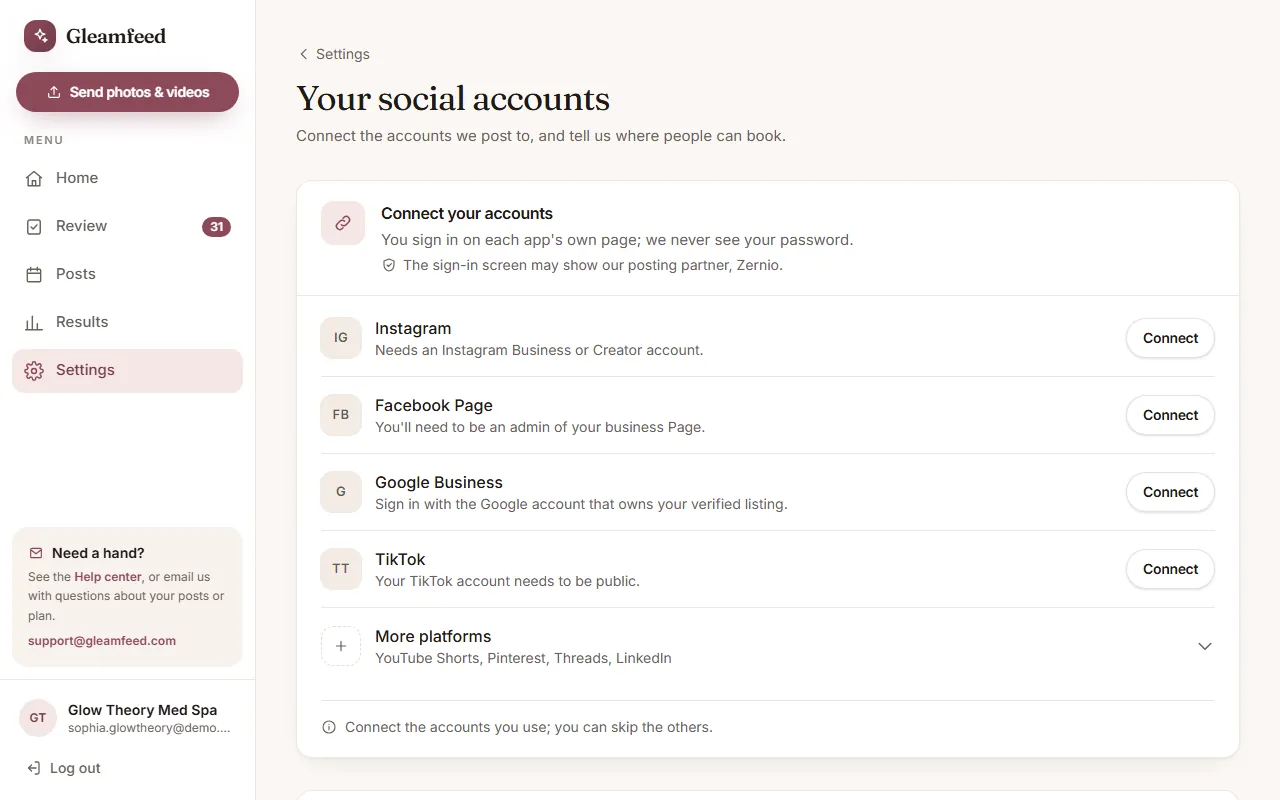
Go to Settings → Social accounts. If you signed up online, choose a plan first; connecting turns on once your plan is active.
Connect an account
- The first time, choose your time zone. We post on your local time.
- Click Connect next to the platform. A new tab opens with that platform's own sign-in page.
- Sign in and allow access. You'll see You're connected, and you can close that tab.
- Back on Gleamfeed, the page refreshes by itself. If it doesn't, click I've connected, check again.
You sign in on each app's own page, so we never see your passwords. Connect the accounts you use and skip the others.
What each platform needs
- Instagram: a Business or Creator account (you can switch for free in Instagram's settings).
- Facebook Page: you need to be an admin of your business Page.
- Google Business: sign in with the Google account that owns your verified listing.
- TikTok: your account needs to be public.
- Under More platforms: YouTube Shorts (the Google account that owns your channel), Pinterest (you choose the board we pin to), Threads (the Instagram account your Threads profile uses) and LinkedIn (your business Page or your own profile).
Your booking link
On the same page, add the page where people book with you, like https://yoursalon.com/book. Use the full link, not a short link like bit.ly. We add it to posts that allow links, such as Pinterest pins, and it powers your tracked bio link (see Results).
Something went wrong?
The page that opens after you sign in tells you what to fix: a personal Instagram account, no Facebook Page, or no Google listing. Fix it and click Connect again. Still stuck, or want to disconnect an account? Email us at support@gleamfeed.com.
Still have a question?
Email us and a real person will help.