Set up
Choose your music, voice, video length and look
Pick the sound for every video once, set how long your videos are, and choose your brand color.
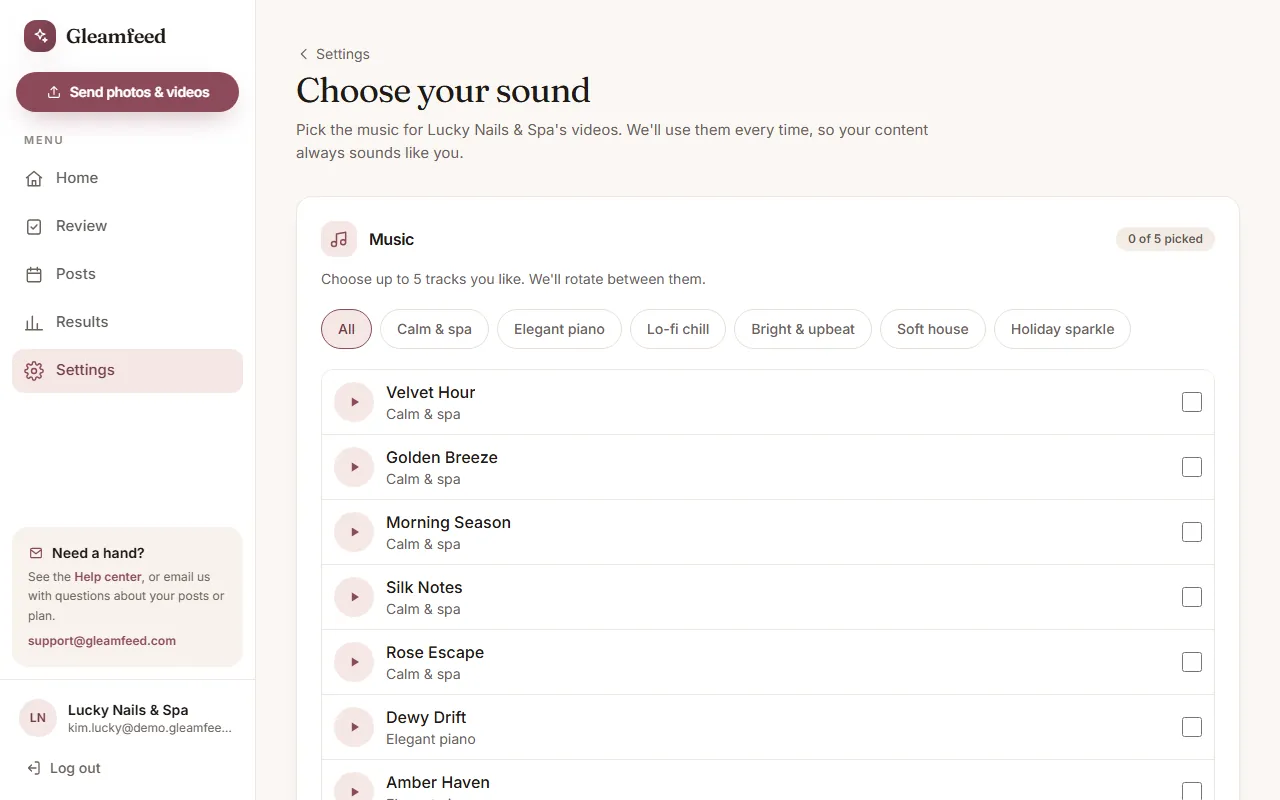
Go to Settings → Your videos, or click Start next to Pick the voice and music for your videos on your Home page.
Music
- Choose 1 to 5 tracks you like. Tap a track to listen first, and use the mood filters to narrow the list.
- We rotate between your picks, so your videos sound like you without sounding the same.
Voice
When voiceover options are shown, pick the voice that reads the tips in your videos. Otherwise your videos use music only.
Save your choices
Click Save my choices. They're saved for every video we make. Want to change them later? Email us at support@gleamfeed.com and we'll reopen your choices.
Video length
On the same page, pick 15, 30, 45 or 60 seconds and click Save length. 30 seconds is the most popular. Longer videos fit more tips and photos. You can change this any time; it applies to your next batch.
Your brand look
- Under Your brand look, tap one of the colors or + to choose any color. Have a brand color code? Paste it, like #8C4A5A.
- Pick a Font style. The preview shows a video cover and end card in your look.
- Click Save look. It applies to your next batch. If a color is very light, we use a deeper shade of it for text so it stays easy to read.
- Leave it on Pick for me and we choose a look for you, aiming to keep it different from nearby businesses we work with.
Still have a question?
Email us and a real person will help.